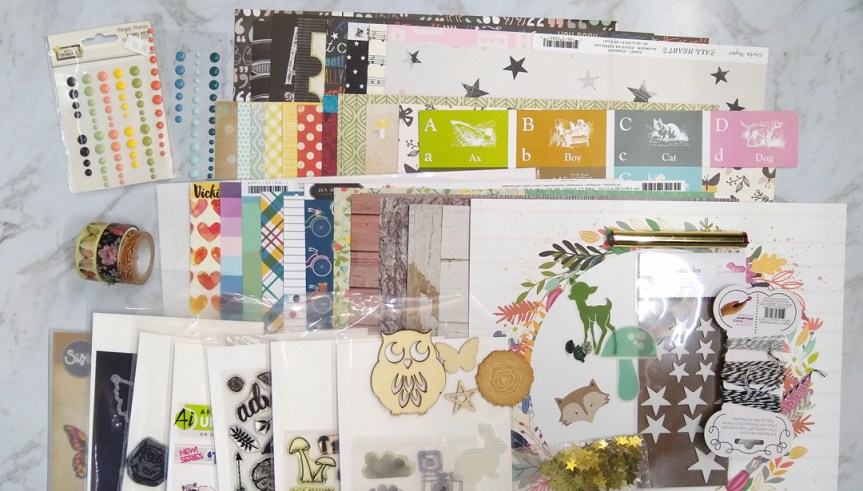
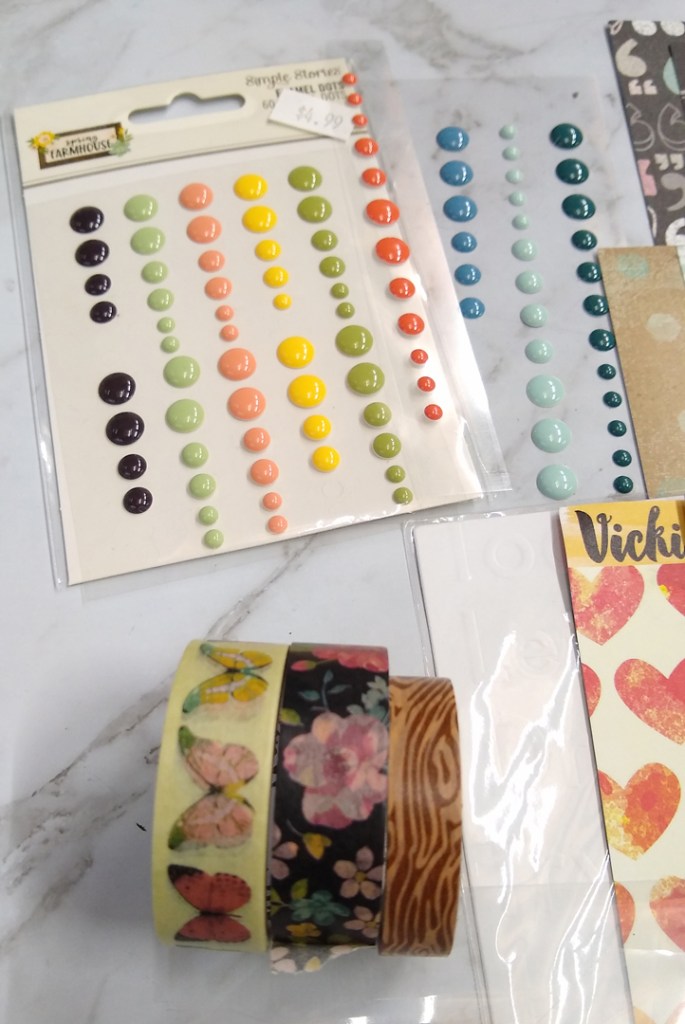
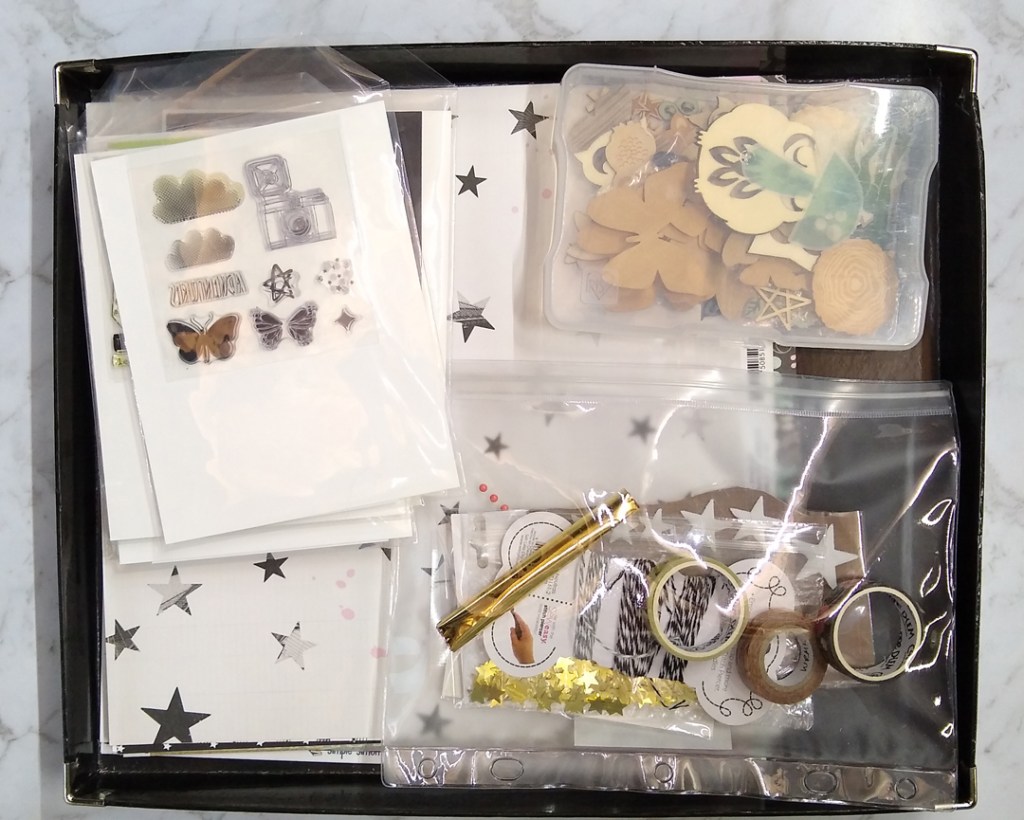
I’ve got another SCT Kit for you. Today’s video focuses on what to do when designs go wrong. Let’s face it, we all have days when things just aren’t working. Instead of tossing it in the trash, I kept working and was able to take a step back and pay attention to the design principles that were making my project come out poorly, and find ways to use those principles to rescue my project
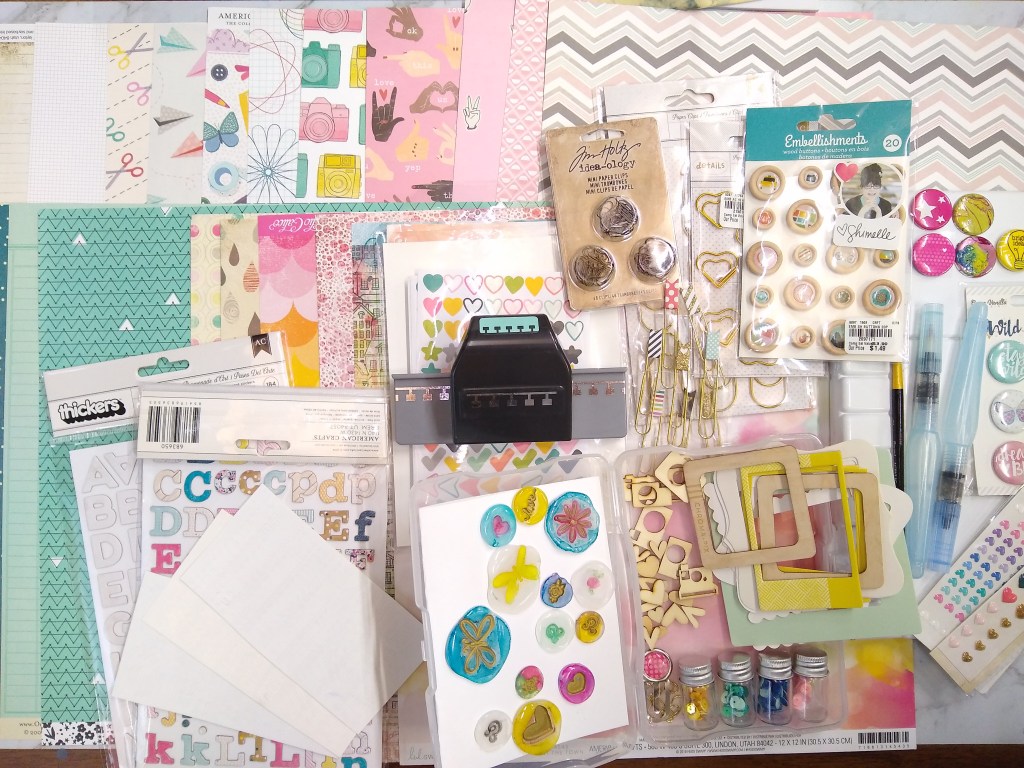
I’ve participated in the Counterfeit Kit Club challenge a couple of times this year and I am really getting into the flow of it. The challenge offers a pre-made kit as inspiration for you to create your own counterfeit kit! Each person is going to draw different ideas and elements from the inspiration and that is the beauty of the process. No two kits will be alike!
Let me show you what I came up with for August.
This kit is filled with teal, pink with just a touch of yellow. I’ve got paper clips, hearts, frames, sequins, wood veneer and flair to add texture. Plus in this kit I created my own faux wax seals! (A YouTube tutorial is coming for that soon, so stay tuned.) I may even do a little bit of brush lettering. Not my strong point, so wish me luck!
So go check out #counterfeitkitchallenge and have fun getting crafty without spending any extra money.
My daughter graduated from high school last month and her ceremony was postponed until August in the hopes of having an in person celebration. While the gathering is still currently in the works, the format will be very different, with an outdoor event, limited family member participation, social distance zones on the lawn and no food or social time afterwards.
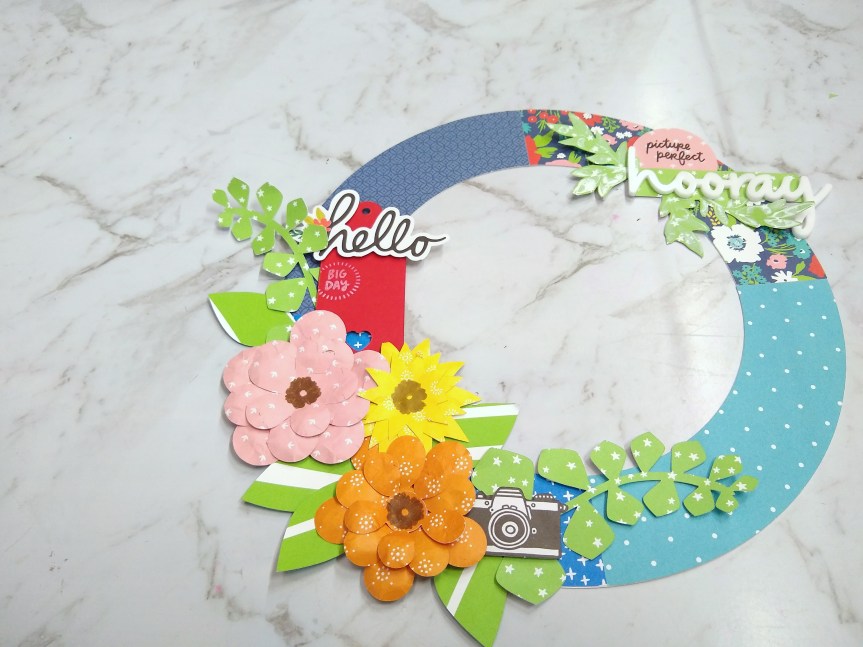
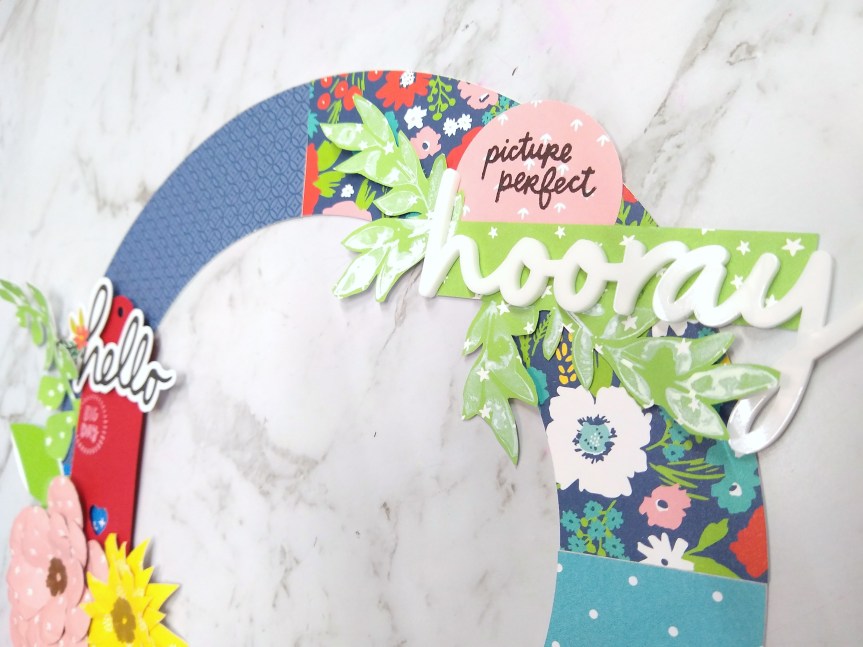
Still, even with those restrictions I will take some celebration over no celebration. And I want to capture a photo of the important moment and hang it in my craft space. So I designed my own svg file to create a floral wreath. (direct download, or go to my freebies page to find the file).
You can see my process in my latest YouTube episode.
I used my current month’s Scrapbook & Cards Today magazine craft kit, called the SCT Sampler as the base of products for this project. I love these little bitesized kits, but of course you could use your favorite supplies.
And here is how my wreath turned out, graduation photo pending!
Hello everyone. Thanks for stopping by. Today I have two things for you. I’ve created a layout process video that uses the day 20 prompt from the LOAD – LayOut A Day – challenge. To learn more about this challenge, visit Scraphappy.org/load.
As you’ll see in the video I created my own shaker elements for my layout. As I am self-learning some Adobe Illustrator skills I will be offering you files for free. And this shaker element is one of those! This is an svg cut file for electronic cutting machines. You can click here to directly download the zip file for that. You can also head over to my freebies section to download it from there and also check out a few other items I have available.
I’m taking this challenge for the first time. The basic idea is to mimic a pre-designed kit with supplies you have on hand already. I’ve known about this website for a while. I’ve popped in on occasion to other bloggers’ adventures with their kits. Yet this is the first time I have jumped in. Check out my YouTube episode on how I am beginning my own foray into counterfeiting.
I’ve got a new YouTube video up showing the process I went through to create my own SVG cut file. Because I don’t own illustrator, I used an open-source graphics program called Inkscape. You can watch my adventure on my latest YouTube episode.
I ran into a few troubles with this process. I have basic graphics skills so that part was no problem. The challenges came when trying to understand the software itself and how svg files translate into machine-specific cutting software. To begin, the graphics software on my mac was a bit buggy and caused significant user frustration. Plus, it was not very intuitive. I decided to watch a two-hour long tutorial before I could get a hang of the controls.
Once I had those controls problems figured out the actual image creation went smoothly. It was just a matter of welding together some rectangle and text shapes. Voila, lovely graphic simply saved as an svg file type instead of an jpg file type.
How it behaved in the Cricut cutting software and the Silhouette cutting software was yet another story. Find out in my video how it all played out.
If you would like to have this svg file for your use, please visit my freebies page. The video will give you tips on how to make this cut file work if you are using Cricut or Silhouette cutting machines. If you have another cutting machine you’ll have to experiment on how to get it to work in your software.
I’ve been using a Carpe Diem (A5 size) planner for a little over a year. I have not fallen in love with it.
I tried first to use it as a calendar planner, but I really prefer Google’s calendars where I can sync with and coordinate with my family’s calendars also.
I tried using it as a personal journal. I found the pressure to keep up with decorating it counterproductive to the emotional release journaling provides.
But I like the physical binder. I want to use it. So now I have repurposed it as my YouTube project binder. I’d been keeping lists of projects in a note taking app and that was actually not working well for me. Cross referencing projects with my calendar was annoying. Keeping one long list of to-do items wasn’t convenient for moving items around. And my individual check list for each video just took up too much note space. Yes I realize I may need a different digital solution but… why not try a physical product I already own first.
That being said, I was lacking a reproducible to-do checklist for my binder. So I made one. You can check out my YouTube video coming soon that includes this item (among others). I’ve made this checklist generic and am offering it for you to download if you are looking for something like this. I’ve got the Excel version and a .pdf version as well.
Welcome (back?) to my blog. I am happy to say that after a couple of years hiatus I am back to blogging. Not only that but I’ve upped my game. I am now producing YouTube Videos! Please visit my channel over at Crafty Soup Video.
The new blog will feature my videos as well as a few freebies like sketches and SVG cut files.
I wanted to have everything spot on for this re-lauch, but life sometimes doesn’t work out that way. As I’ve moved service providers for the blog I’m having domain name issues. My tech guy (aka my husband) is helping to resolve those issues. Thanks for your understanding.
I got fewer layouts done this year than I normally would. The difference was twofold.
I didn’t pack kits for each layout like I would normally do. This meant I was spending more time browsing through supplies to come up with ideas (see post #3 and #4 to see how my thought processes played out).
The scrap space was full and I had to share a table with other people. That meant I was chatting more with people. It was a good trade off as I had fun getting to know some people who turned out to be really local to me!
It is okay that the quantity wasn’t there. I’m happy with what got made and I had a good time. Scrapping is so much more for me than just the final product.
For this layout it was all about theme. The photo represents characters from a WiiU game called Splatoon. That game is all about paint. So, yes I used painting techniques for this layout. Ink puddles and ink splatters were the focus. I wanted a lot of contrast and happened to have a bold, black alpha for my title. I went with that and matted my photo in black as well. Then I added red as another smaller, yet still high contrast element to finished it off. These high contrast pieces actually help the colors pop more than they would have otherwise.
Had I planned things better I would have used watercolor paper as the base for this layout. This cardstock did not hold up well to all the water I put on it and it buckled. It isn’t the fault of the paper; that just isn’t what it was meant to do. But again, I went rolled with what I had on hand. Like I said at the start of this post, it isn’t always about the finished product!
So I have all these photos full of purple. Where to go with the color scheme? I don’t want more purple. So I look through my supplies, embellishments mainly, to see what I can decorate with and pull colors from those items. I grabbed that die cut that reads “you are my greatest adventure.” (This kid of mine loves to DO things, so I’m often dragged along into her world. So, yeah, she is my adventure.) Pink embellishment? Pink and purple color scheme! I kept the purple smaller with just a strip of patterned paper, rhinestones (her character is named Amethyst after all) and a bit of twine (Honestly, I just needed a filler for the awkward white space at the bottom.) The star pattern paper offers some neutral contrast and provides a bit of theme (the character is famous from a TV cartoon). I grabbed a couple more pink items to create my visual triangle and threw it all together.
There is some tonality difference between the main die cut sentiment and the brighter white of the “this!” word and star paper. That might bug some people but I don’t mind. I think the wood veneer actually helps pull in the color from that one die cut and makes it work okay.
So when you are stuck with photos, look to embellishments to find your color scheme and pull together items that helps everything flow.
RECIPE
pattern papers: Stampin’ Up (purple), unknown (rest)